Gameplay · 7 min
Aniimo Storage Box Guide: Sorting, Filters and Auto Release
Aniimo Management is nine storage boxes of 24, and almost every button on it exists to stop you deleting something you wanted. AniimoSync walked the whole screen on launch day with help from Celis.C, and we checked the capacity, the release rewards and the auto-release protections against the game’s own data files.

Video by
AniimoSync
Launch-day walkthrough and footage by AniimoSync, built with Celis.C, who worked out the storage box routine this guide follows
Aniimo Management holds nine storage boxes of 24 Aniimo each, 216 slots in all. The bottom bar carries sort, filter, lock and Manage: sorting reorders one box or every unlocked box at once, locking a box shields it from both, and the Research Console can auto release Common, Good and Elite catches as you hand in a report.
This is the whole screen in order: what the boxes are, every sort option, what the filter narrows to, what locking really protects, how to drag a stack of Aniimo between boxes, how to rename them, how to release in bulk without losing anything, how the mark labels work, and the three auto-release toggles at the Research Console.
Two notes on the sourcing. The walkthrough is AniimoSync’s launch-day footage, recorded in the live client on 16 September 2026, and it was built with Celis.C, who worked out the routine below and whom the video credits by name. Every number and rule here has then been checked against the game’s own data files for build 1.0.0.7, and each section says which line came off the screen and which came out of the tables. Where the two disagree, we say so.
One disambiguation first. The Storage Box you receive as a piece of Home furniture is a different system, covered in our Homeland guide. This page is only about Aniimo Management, the box your caught Aniimo live in.
How does Aniimo storage work?
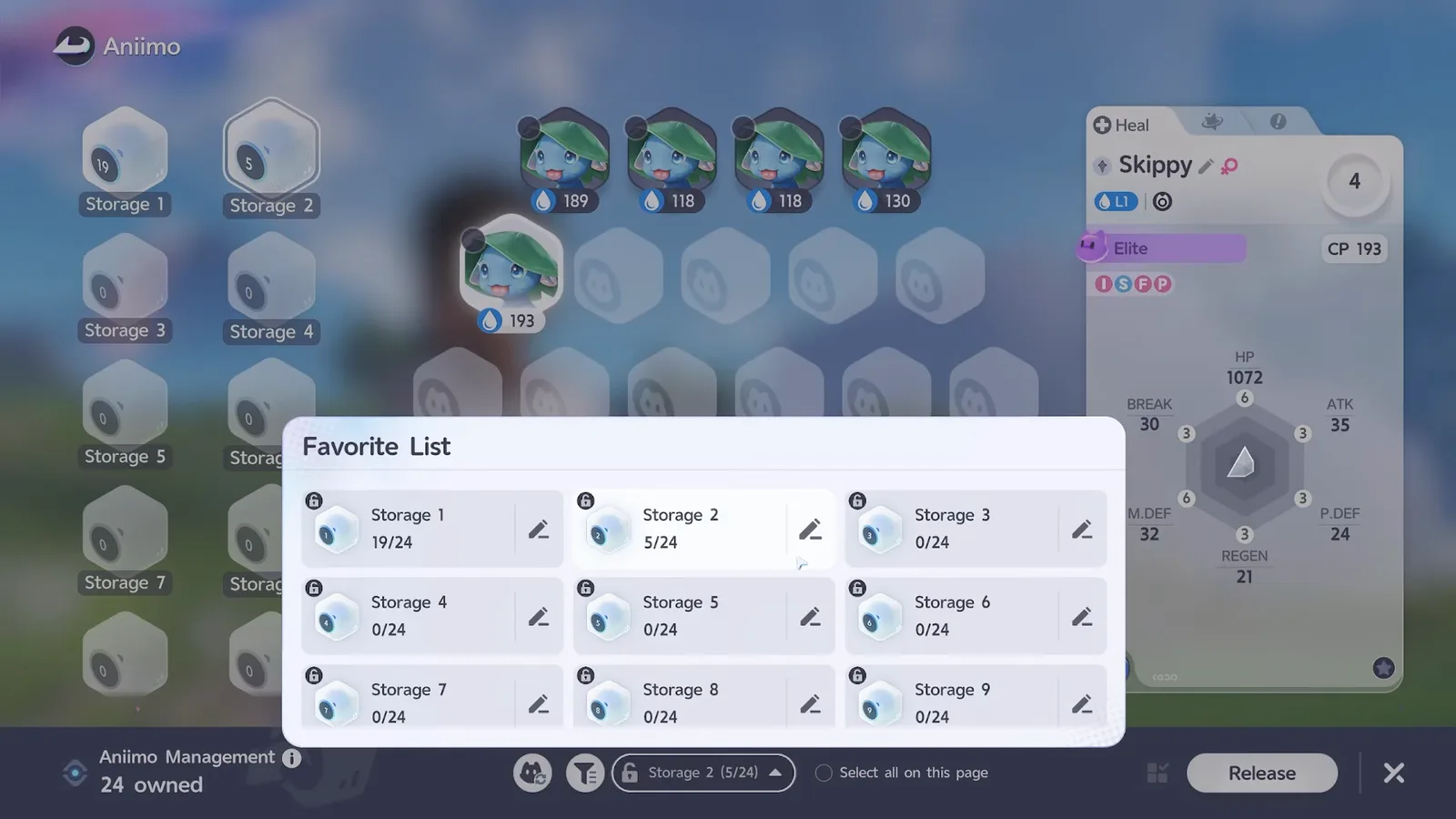
Aniimo Management is nine storage boxes of 24 Aniimo each, which is 216 slots before anything is expanded. The bar along the bottom names the box you are in and how full it is, for example Storage 1 (24/24), and clicking that name opens a list of all nine with their counts. The data files call the default box name Storage, which is why a fresh account reads Storage 1 through Storage 9.
Running out of room is a hard stop. The tables carry a message for every way you can hit it, including one that blocks a catch outright: Not enough storage space in Aniimo Management. Cannot catch the Alpha.
Capacity is not fixed, though. The data files carry a player attribute for extra Aniimo storage, handed out in sizes of +5 and +10, and the battle pass sales page advertises Aniimo Management Storage Capacity +3. The catch on paid boxes is in the tables rather than the footage: This Storage has expired. Aniimo cannot be placed inside. Storage bought that way lapses when the pass does.
How does sorting work in the Aniimo storage box?
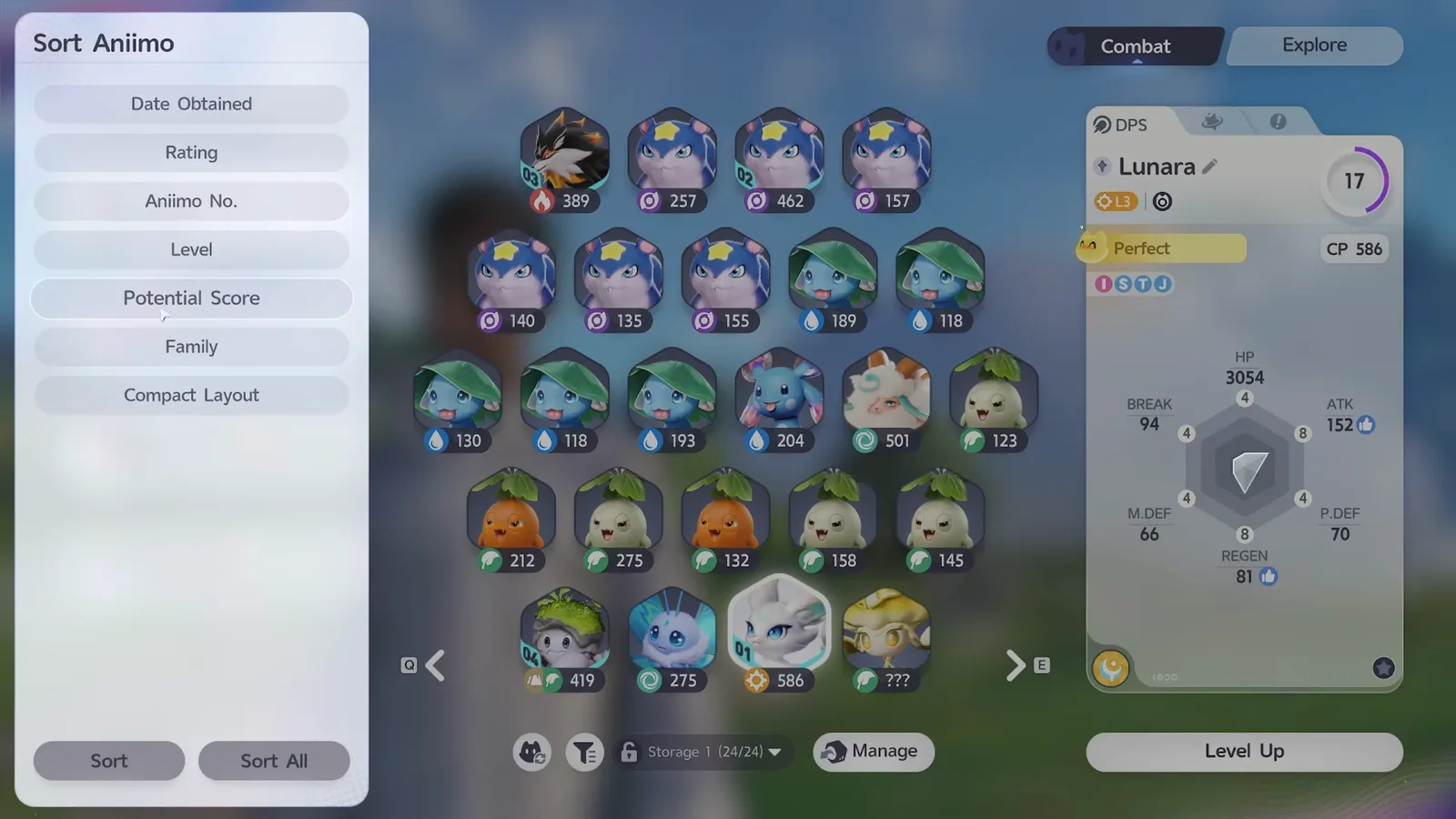
The sort button at the bottom left opens a panel called Sort Aniimo with seven entries: Date Obtained, Rating, Aniimo No., Level, Potential Score, Family and Compact Layout. Pick one and the box rearranges itself, so you never have to drag an Aniimo to tidy a page. Clicking the same option twice flips the direction, which is how AniimoSync gets Potential Score to show the weakest first when he is deciding who to release.
The two buttons at the foot of that panel are not the same thing, and the data files explain the difference better than the screen does. Sort reorganises the box you are in. Sort All goes wider: it re-sorts the Aniimo in all storages that are not locked, and its own tip repeats that locked storages will not be organised. The files carry ten sort keys in total, and the four this screen does not offer belong to other selection panels.
How do you use the filter in Aniimo Management?
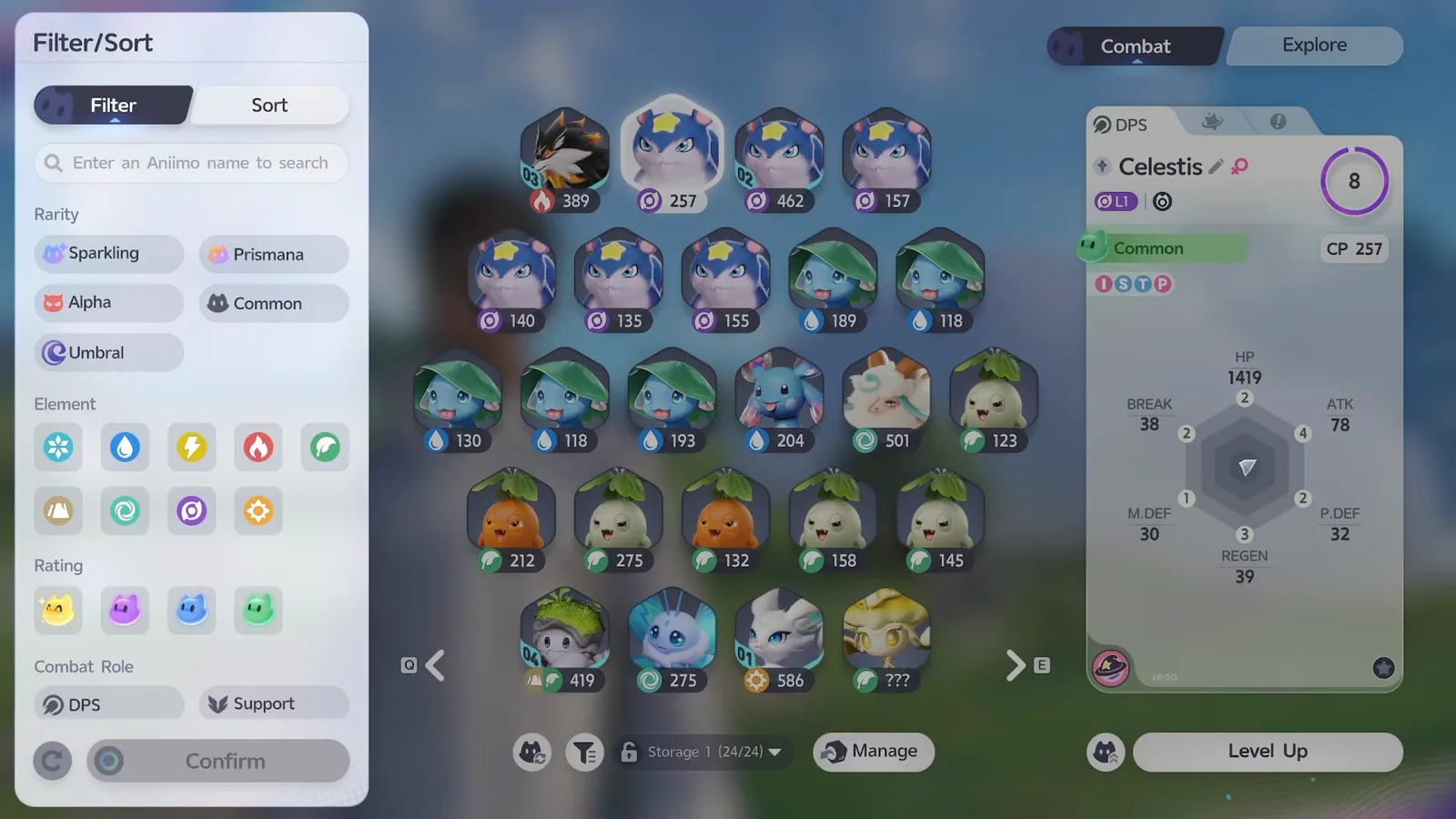
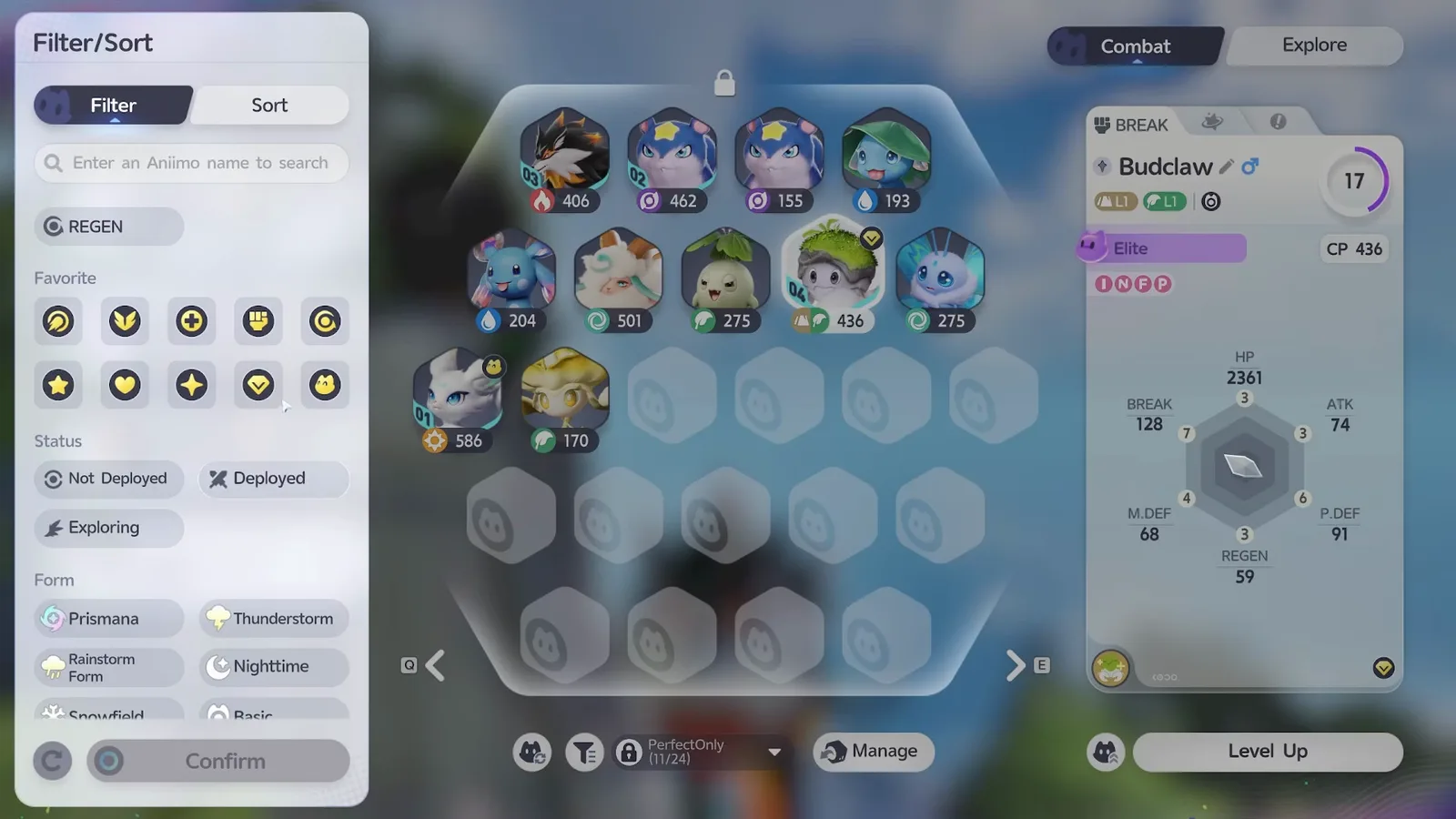
The funnel icon beside the sort button opens Filter/Sort, and unlike sorting it moves nothing: it only hides what does not match. That makes it the safe tool. What it narrows to, as the launch build lists it:
- A name search, with the placeholder Enter an Aniimo name to search.
- Rarity: Sparkling, Prismana, Alpha, Common and Umbral.
- Element: all nine element icons.
- Rating: the four Potential grades, gold, purple, blue and green.
- Combat Role: DPS, Support and the rest of the role set.
- Favorite: the mark icons, covered further down.
- Status: Not Deployed, Deployed and Exploring.
- Form: Prismana, Thunderstorm, Rainstorm Form, Nighttime, Snowfield and Basic.
The data files add one toggle the footage never opens, a Smart Filter, and what it decides is not spelled out there, so we are not going to guess. The four Rating swatches are the Innate Potential grades the tutorial names in order: Common, Good, Elite, Perfect. If that scale is new to you, our beginner guide explains what Potential changes.
What does locking a storage box do?
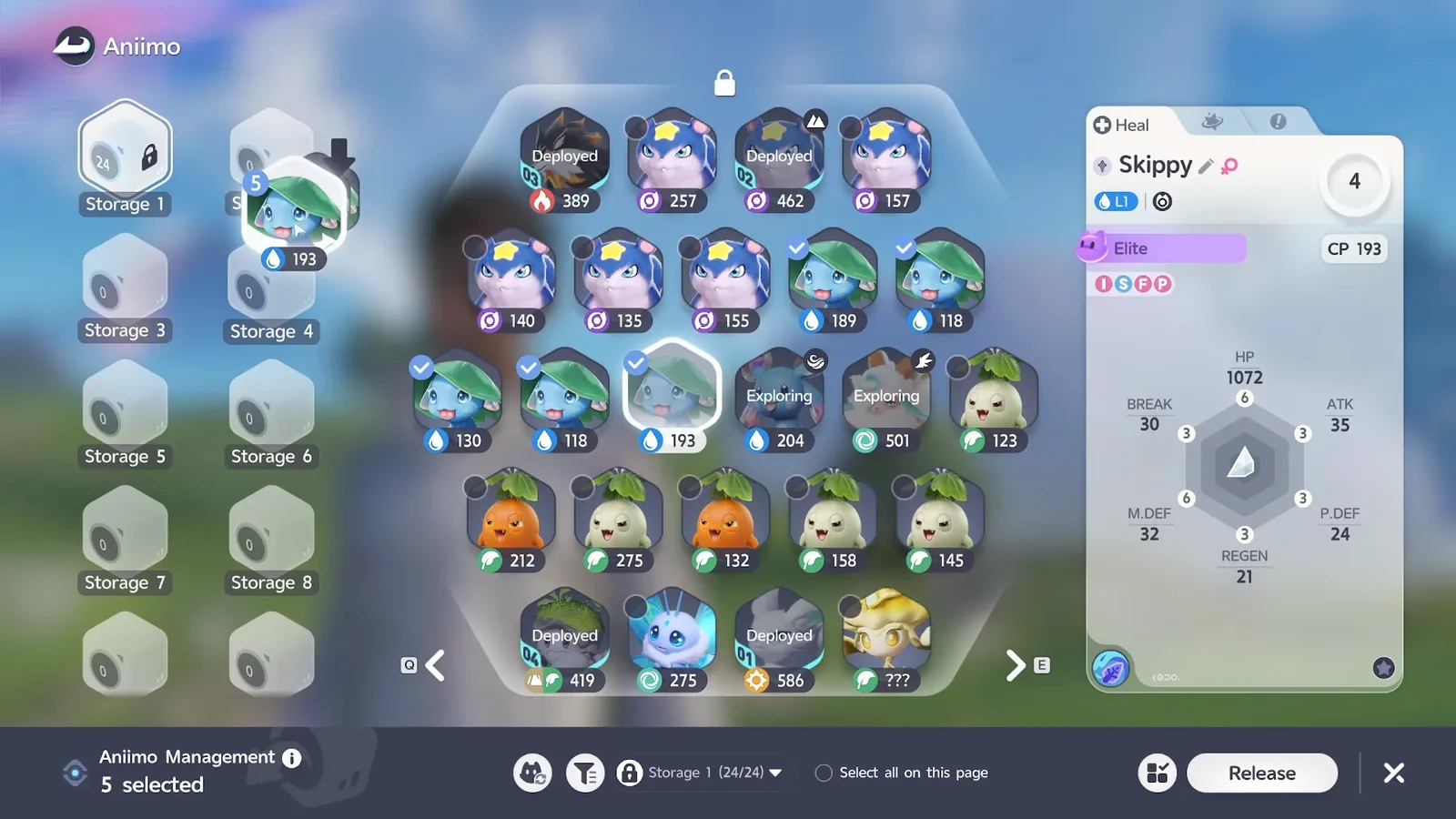
The padlock beside the box name locks that box, and a locked box is skipped by every batch action, including Sort All. The screen tells you with a padlock above the grid.
The footage stops there, and the tables carry a second half of the rule that matters more day to day. The lock tooltip reads, in full: Aniimo in locked storage will not be affected by a batch action. New Aniimo acquired will not be added to this storage. A locked box is also taken out of the rotation for fresh catches: right for the box holding your squads, wrong for the box you are catching into. Try to organise one directly and the game refuses with This Storage is locked. Please unlock it before organizing.
How do you move several Aniimo at once?
Press Manage, tick the Aniimo you want, then drag the stack onto a box tile in the left-hand rail. The cursor carries a number while you drag, so you can see the count before you drop. AniimoSync gathers his five Skippy that way and drops the lot into Storage 2 in one motion.
The Aniimo the game will not let you pick up have their state written across the card: Deployed and Exploring entries carry no tick box at all. There is a cap on how many you can grab at once, but no number is shown: the tables carry the refusals, Multi-select limit exceeded and Selection range exceeded, without stating the limit.
How do you rename and navigate storage boxes?
Click the box name at the bottom of the screen and a list opens with all nine boxes, their fill counts and a pencil beside each one. The pencil opens a dialogue headed Edit storage name, and the same list is the quickest way to jump between boxes.
AniimoSync flags one behaviour nothing on screen warns you about: a name with a space in it did not register for him, which is why his boxes end up as WaterTypes and PerfectOnly rather than two words. That is his testing rather than a rule in the tables, so write names as one word until someone proves otherwise.
How do you mass release Aniimo in Aniimo?
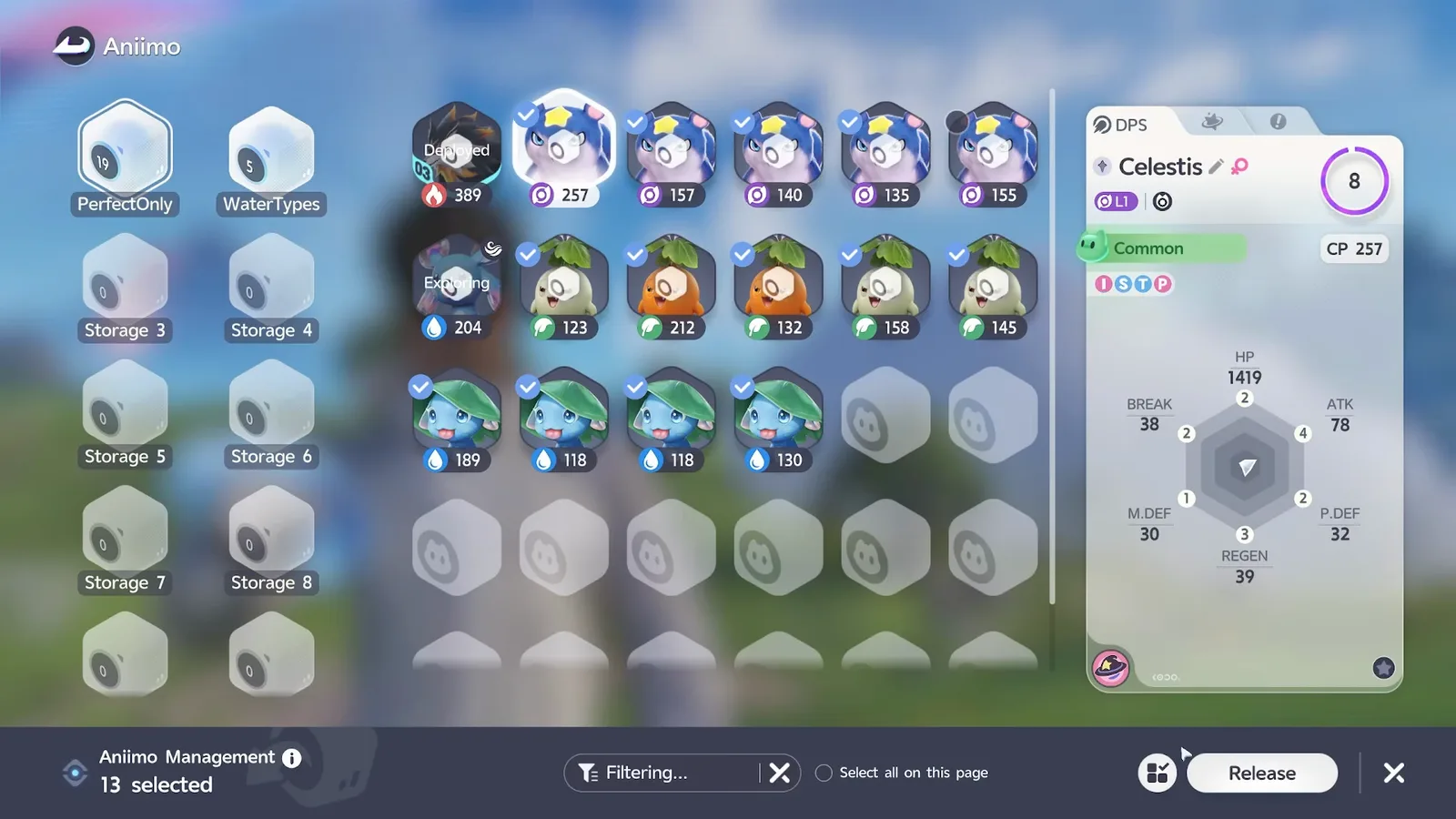
Filter down to the grades you do not want, press Manage, use Select all on this page, then Release and confirm. This is why the filter comes first: it decides who is on screen, and Select all only ever takes what is on screen.
- Open the filter and tick the ratings you are clearing. Common and Good is the usual pair. Confirm, and the grid shows only those.
- Press Manage. The bottom bar becomes a selection bar with a Release button on the right.
- Tick Select all on this page. Deployed and Exploring Aniimo have no tick box, so they cannot be swept up.
- Press Release. A panel called Released Aniimo List shows every portrait once more, with a red warning across it.
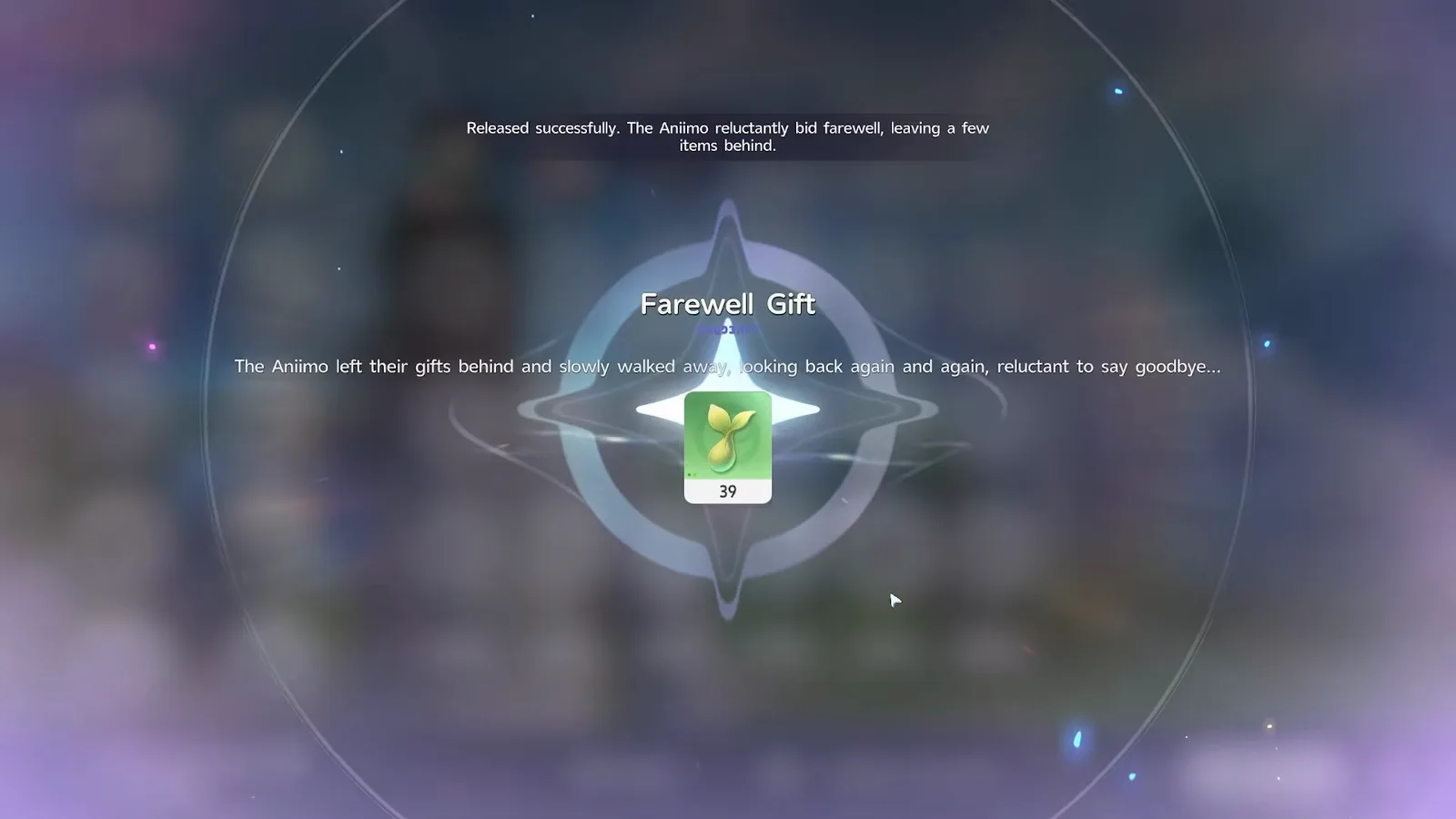
- Confirm. The Farewell Gift screen plays and the items land in your bag.
That red warning is the line to read rather than click through: training materials will not be returned upon releasing Aniimo. Anything you have poured into a creature goes with it. The game also asks again before anything uncommon.
What do you get back for releasing an Aniimo?
A Farewell Gift, and the main item in it is the Growth Bud. The release table names that item directly and its card says what it does: grants an Aniimo 1,000 Aniimo EXP when used. A clear-out is a levelling budget for whatever you kept.
The rate is where the tables and the footage part company, so here are both. On camera, releasing 13 Aniimo returned 39 Growth Buds, and the auto release later in the video turned 5 Aniimo into 15 plus one other item: three each, twice. The release table carries a single row for that item with a quantity of five beside it, which neither release matches, so we give the observed figure and flag that the per-Aniimo rule is not something the tables confirm.
What cannot be released
The tables carry a longer protection list than the footage shows. An Aniimo is refused if it is favourited (This Aniimo is favorited. Remove it from favorites before releasing it), deployed, out on an exploration, bonded, living in your Home, inside a Habi-Cube, in the Holo-Battle Sim, or taking part in a course, and there is a further flag for special Aniimo that can never be released.
How do Aniimo marks work?
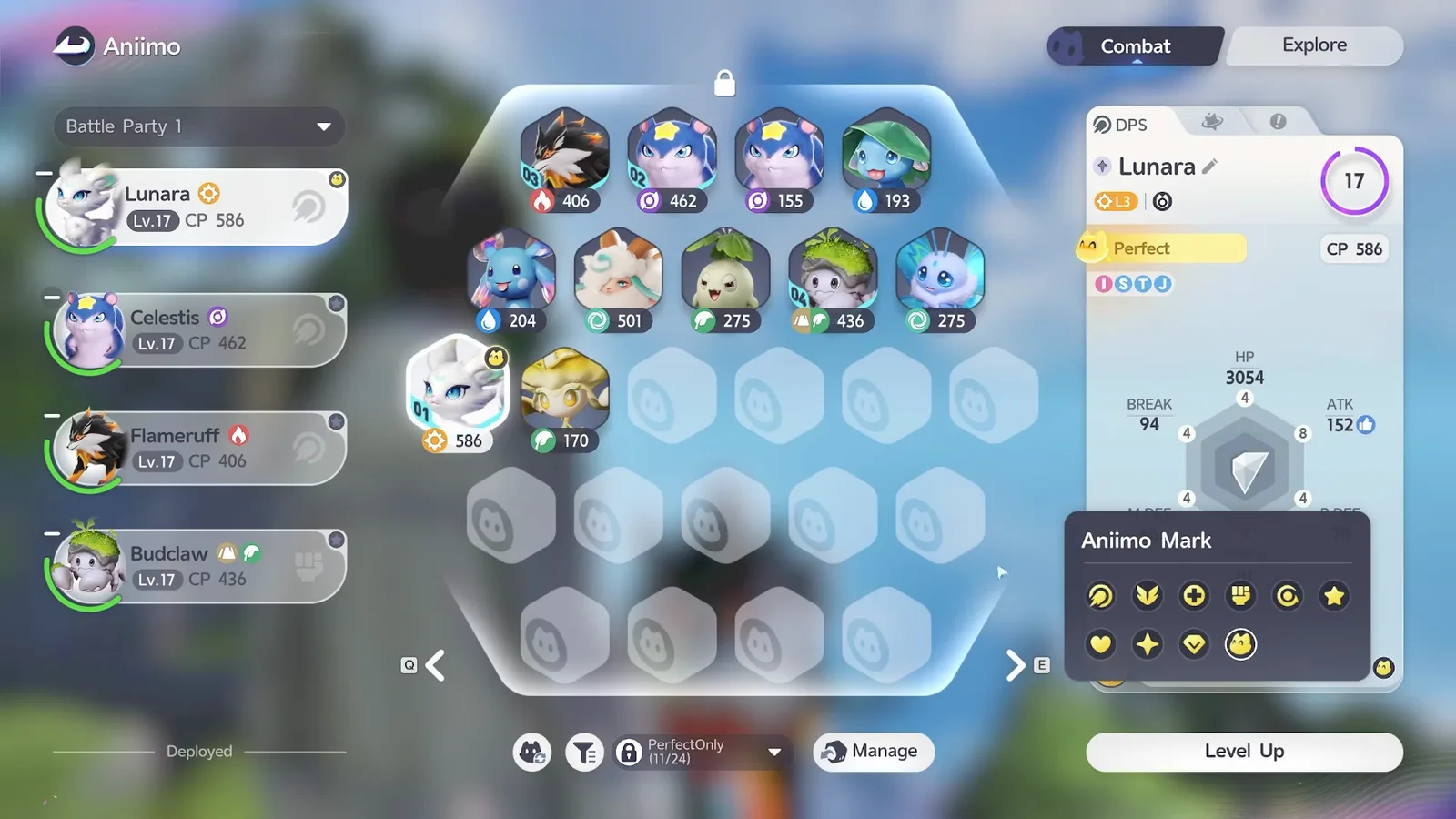
Select an Aniimo and a star silhouette sits at the bottom right of its card: that opens Aniimo Mark, a palette of small icons you can pin to any creature. The mark then shows on the portrait in the grid, so you can read a whole box without clicking anything. The palette in the footage offers ten marks in two rows; the data files carry eleven icons, so the build has one more than the video displays.
What each one means is up to you, which is the point: AniimoSync uses the small face for Perfect and the chevron for Elite. They are not only decoration, either. The filter panel has a Favorite section made of exactly those icons, so a mark becomes a search term, and a marked Aniimo is refused by the release button.
How does the Research Console auto release work?
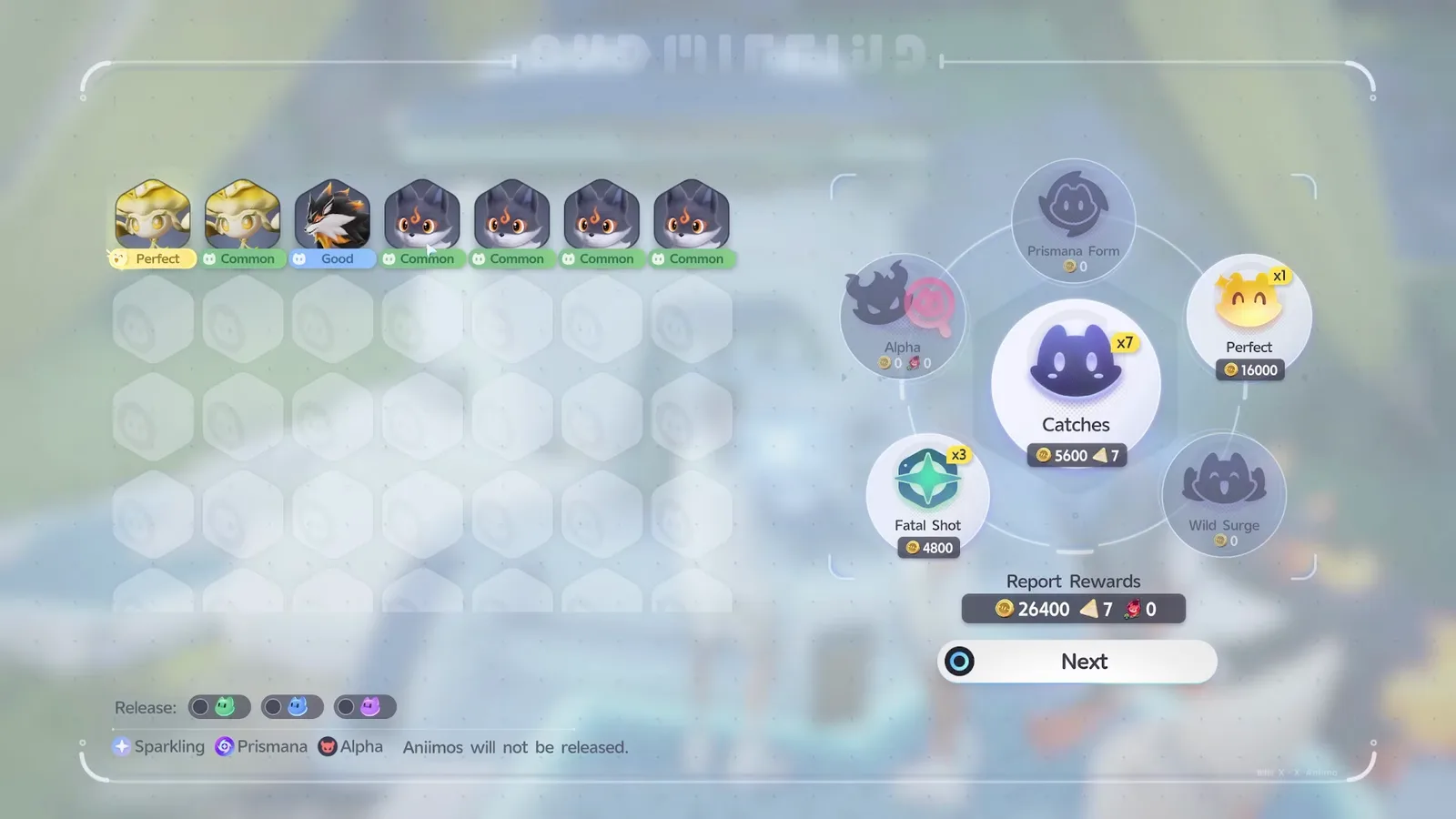
At the Research Console on any Outpost, the report screen carries a row labelled Release: with three toggles, and anything matching a switched-on grade is released the moment you press Next. It clears a catching session before those Aniimo reach your boxes.
The three toggles are the Common, Good and Elite Potential grades, in the green, blue and purple the game uses for them everywhere else. Perfect is not on the row at all, so it cannot be auto released even by accident. Under the toggles the client prints, in full: Sparkling, Prismana, Alpha Aniimos will not be released. Those three are held back regardless of their rating, which is the difference between a convenient setting and a dangerous one.
One detail from the data files, because it explains the behaviour: the choice is stored as a per-user client preference, so the toggles you set stay set for the next report. Releasing this way produces the same Farewell Gift screen as releasing by hand.
The storage setup we would use
Mark first, lock second, auto release last, because each step makes the next one safe.
- Mark everything you would be upset to lose. A mark is the only label the release button respects.
- Put your squads in Storage 1 and lock it. A locked box is skipped by Sort All and never receives a new catch.
- Name a box as the dump. One word, since spaces did not register on camera. It is the only box you ever clear.
- Sort the dump by Potential Score, weakest first. Two clicks on the same option flips the direction, and the release candidates gather at the front.
- Auto release Common and Good, and leave Elite switched off until you know which species you want at Elite. The toggle is reversible, the release is not.
The one thing we would not automate is Elite: which species earn a slot is a separate question, and our role-by-role picks and the Aniidex are the place to settle it. If this is still your first day, our 10 things to do first guide puts the box screen in order alongside the Outposts and the eggs you should have hatching.